Who is this for? #
Any director or administrator who needs to remove an active director, parent, or student from an organization.
Prerequisites #
- To remove a member, you must have both the "edit" and "delete" permissions for Users. If you don't have these permissions, talk to an Administrator or Admin Assistant in your Presto Assistant admin portal.
Detailed steps #
Navigate to the details page for the director, parent, or student you want to remove.
Press the Edit button in the upper right corner of the page.

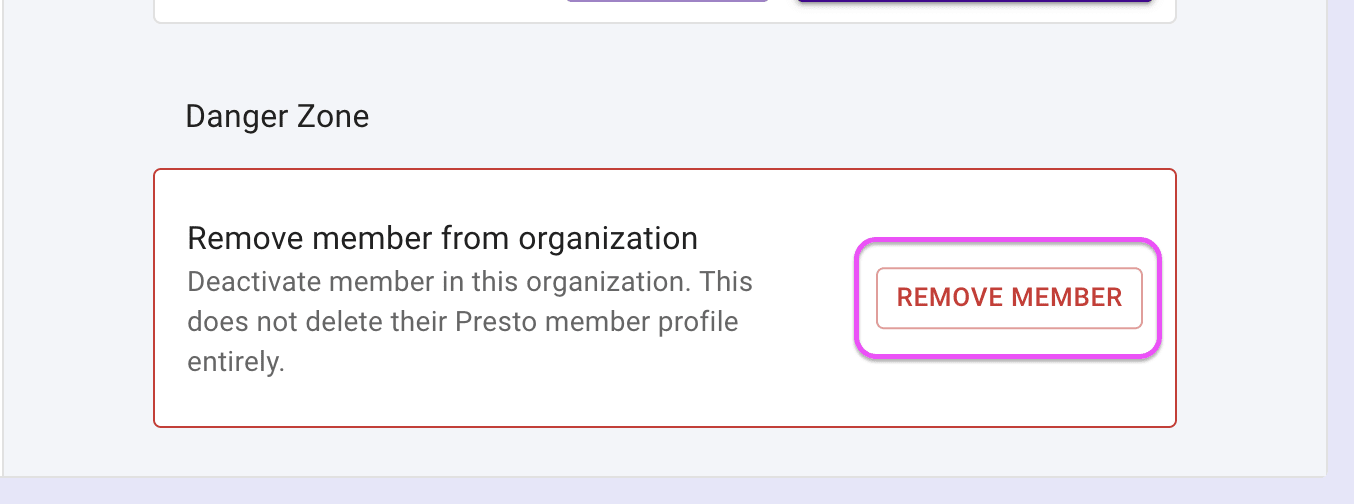
- Scroll to the bottom, finding the "Danger Zone", and press the "Remove Member" button.
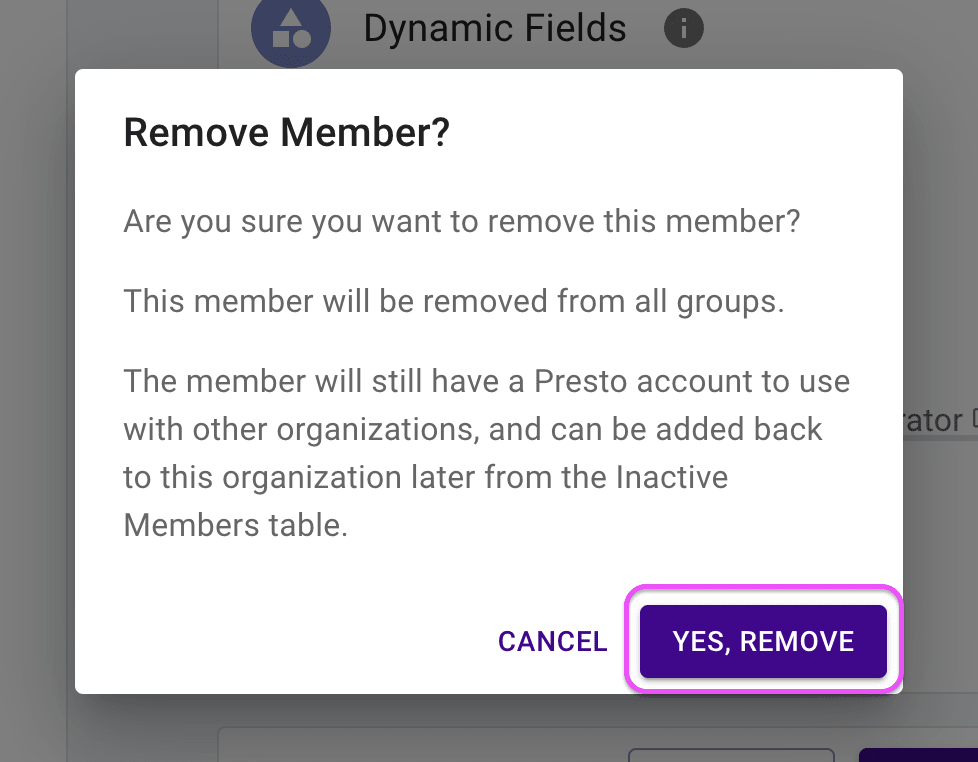
- In the confirmation dialog that appears, verify that you want to remove the member. Press the "Yes, Remove" button to proceed.
Next steps #
- Any member you remove will be visible in the Inactive Members table.
- If you need to restore a member to active status, see the View Inactive Members support article.